
📖 How to Use Peekem
4-Step Visual Guide • Works on Android, iOS & Desktop
Connect two phones—or a phone and a laptop—in about 30 seconds with zero accounts and zero cloud storage. Follow these steps for the smoothest setup:
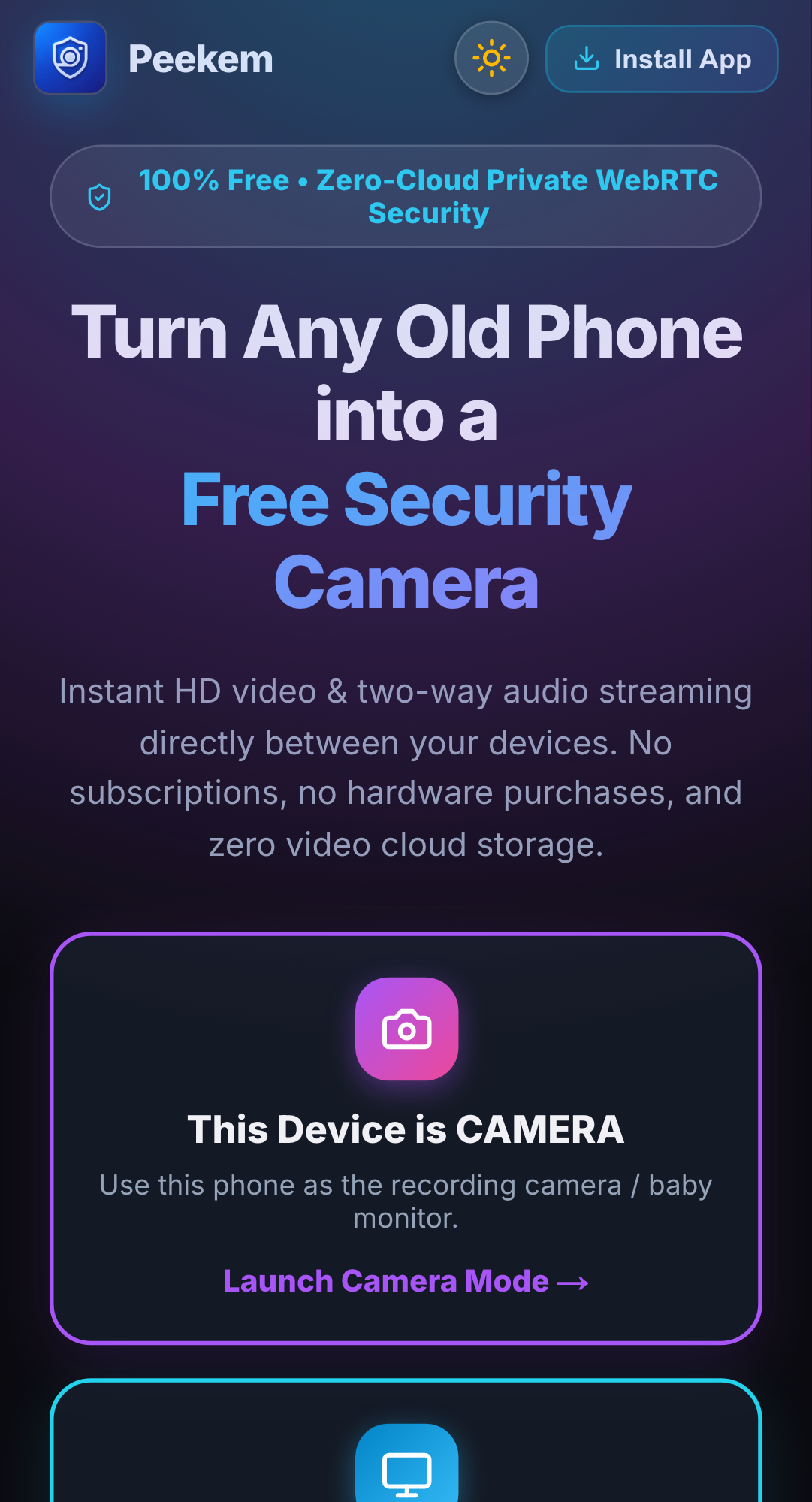
Open Peekem & Pick a Mode
Open peekem.com in any browser on two devices. On the spare phone you are leaving in the room, tap Camera Mode. On the phone or computer you are carrying, tap Viewer Mode.
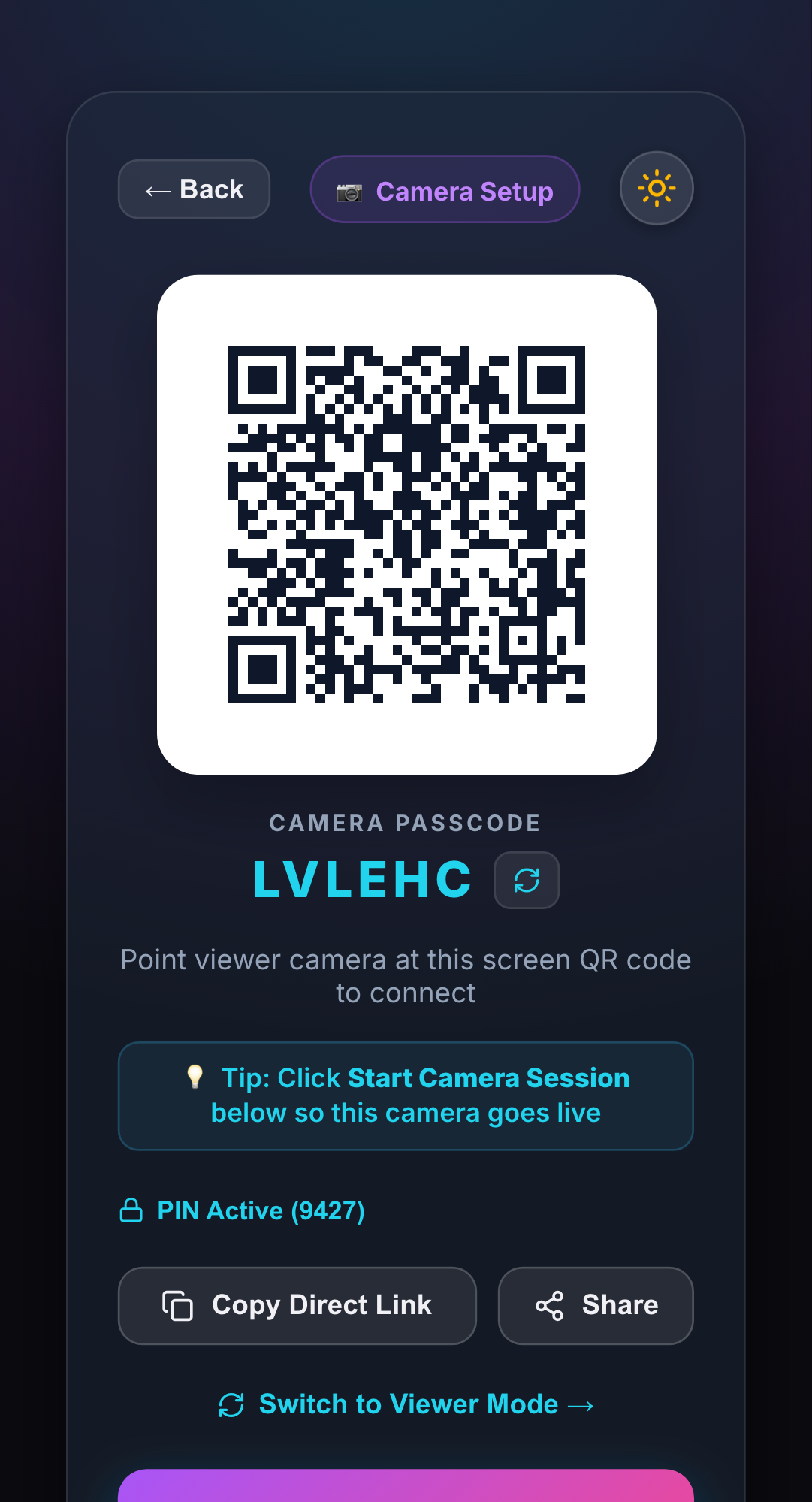
Tap "Start Camera Session" on the Camera Phone
You will see your unique pairing QR code and 6-character room code. You can also set an optional 4-digit Security PIN. Tap "Start Camera Session" so the camera goes live and starts waiting for your viewer.
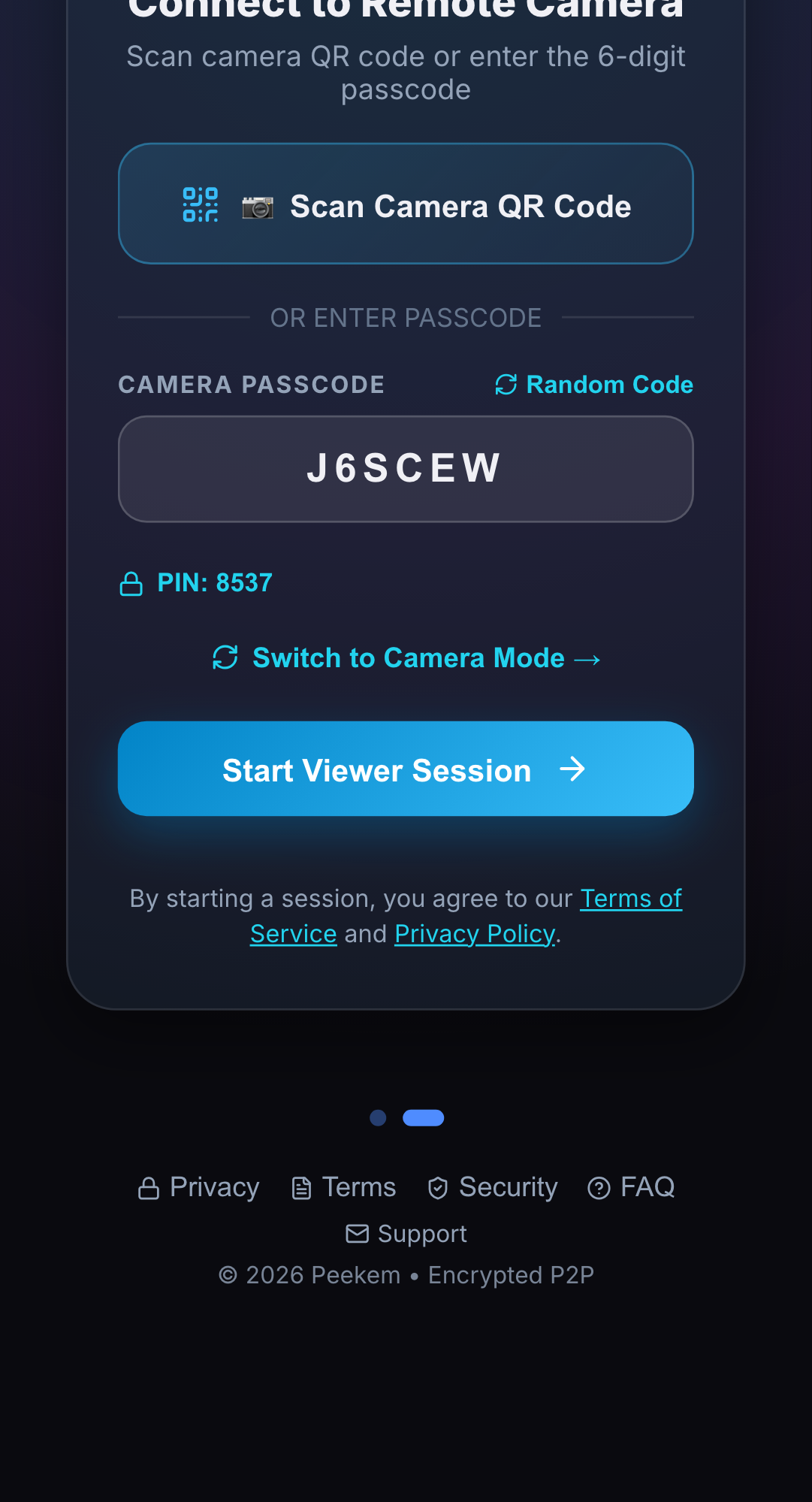
Scan the QR Code from the Viewer Phone
On your Viewer device, tap "Scan Camera QR Code" and point it at the Camera phone screen — or type the 6-character passcode manually and tap Connect.
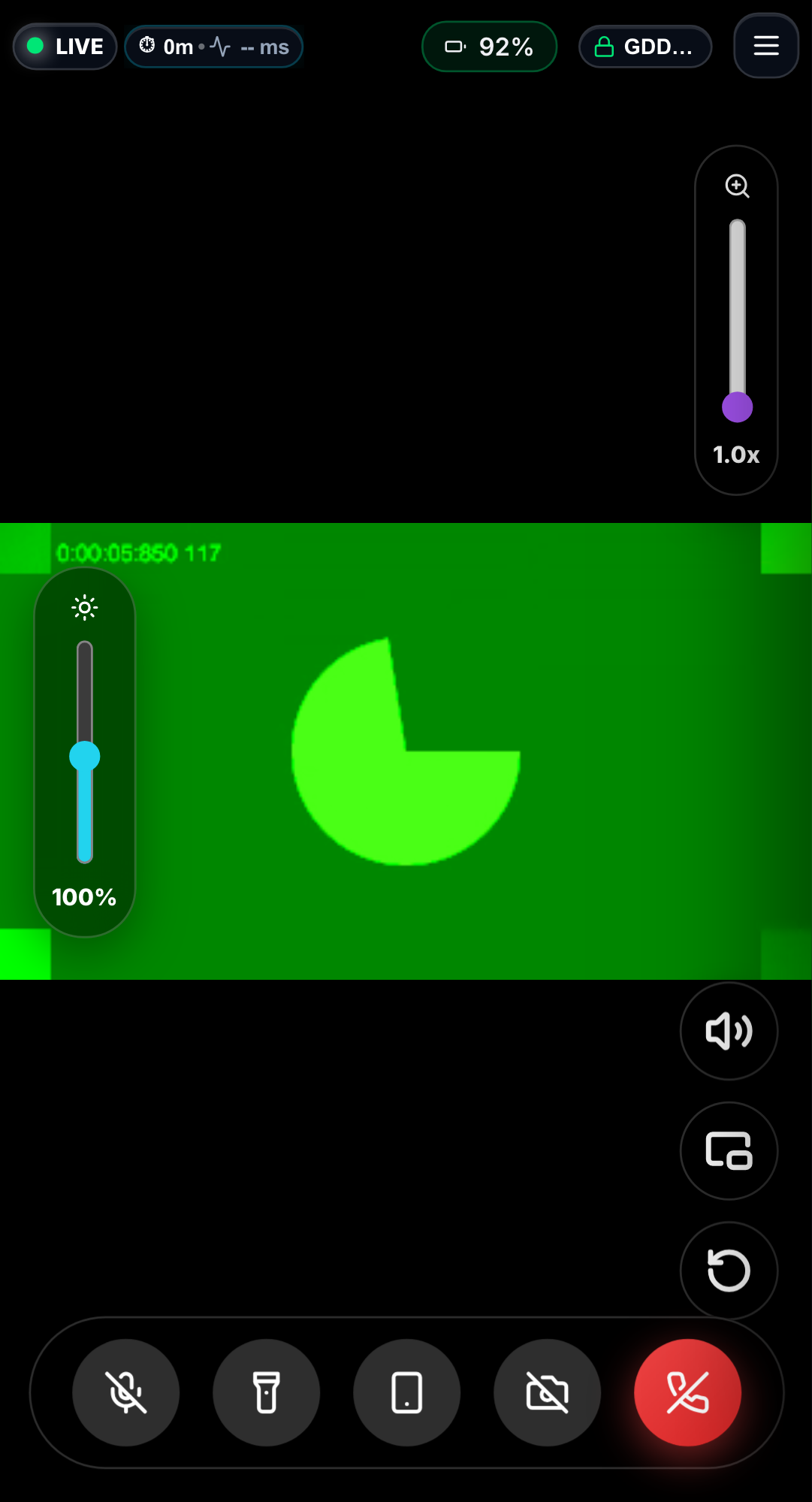
Watch & Control Live
Your encrypted peer-to-peer stream starts automatically. Use the floating controls to unmute audio, turn on the remote flashlight, talk back with the mic, toggle Night Vision, or switch between Fit Screen and Fill.
Quick Troubleshooting
Stuck on “Waiting for Remote Device”?
Make sure you tapped Start Camera Session on the camera phone (so the camera preview is live) and that both devices show the same 6-character room code.
Seeing “Tap to Start Video” or a paused screen?
Mobile browsers in battery-saver or strict autoplay mode occasionally pause video until you interact with the page. Tap Start Video once to begin playback immediately.
Stream freezes when I lock my camera phone
iOS and Android browsers automatically pause camera hardware when the screen is locked or the browser is minimized. Keep Peekem open in the foreground and turn on Stealth Mode in the Camera Tools drawer to black out the screen while streaming.